Notes
Rich notes, Kindle synchronization, note import, and scheduled review emails that resurface what you've written.
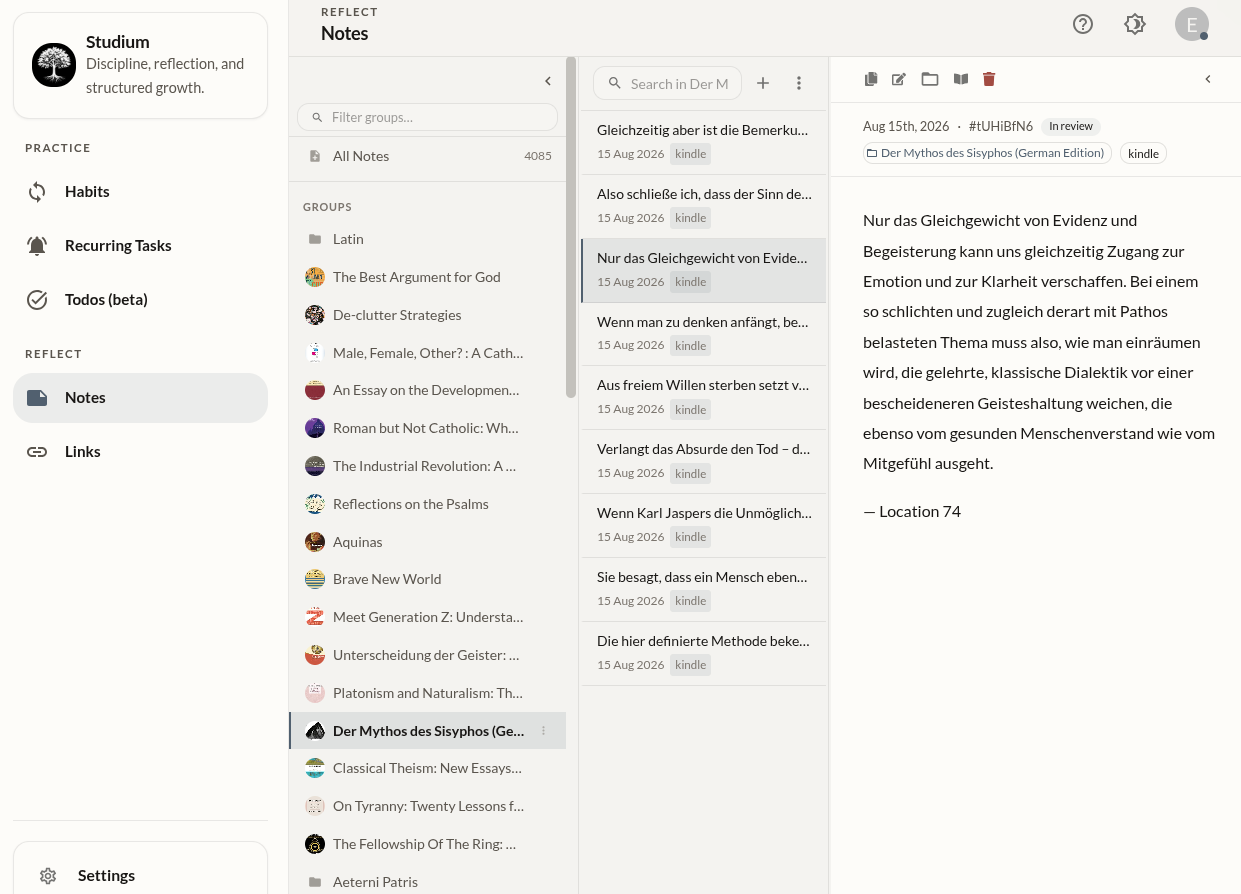
Knowledge that returns to you over time.
Notes pile up quickly, and unless you go looking, old ones stay unread. Studium notes are captured, imported, and organized once, then resurfaced automatically through scheduled review emails.
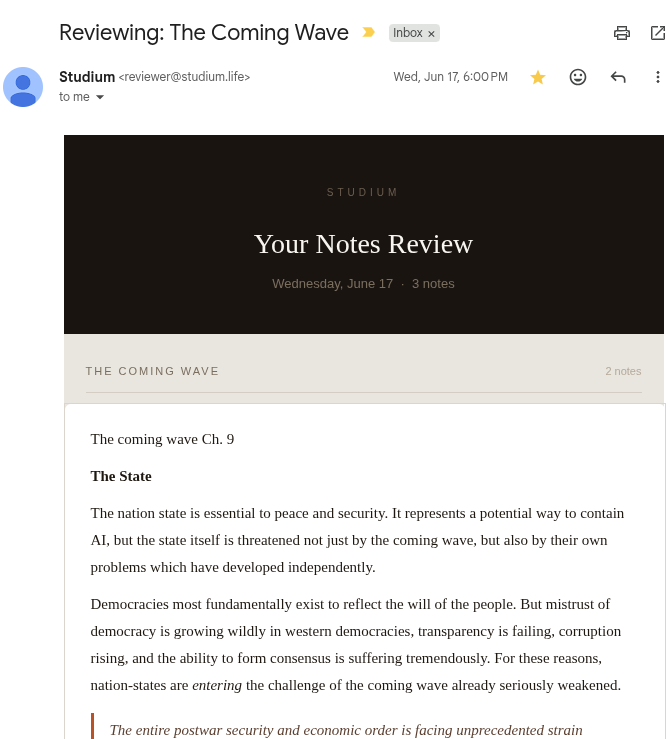
Scheduled note review emails periodically surface notes from your collection, so what you wrote months ago isn't only accessible if you go searching for it.
Start capturing notesYour notes come back to you.
Studium sends scheduled note review emails that surface previously captured notes at useful intervals. Notes you wrote months ago — ideas, insights, quotes, observations — reappear in your inbox.
- Receive scheduled emails surfacing past notes
- Rediscover insights you'd forgotten you captured
Bring your highlights in.
Studium supports Kindle synchronization — import your Kindle highlights and notes directly into your personal knowledge collection. The books you read and the passages you marked don't have to live in isolation.
Note import allows you to bring in notes from other sources and systems, consolidating your knowledge in one place. Once imported, notes go through the same scheduled review process as anything else you've written.
Why markdown.
Notes in Studium are written in Markdown, which keeps the format simple, portable, and readable even as plain text. Your notes don't depend on Studium to be usable — they're just text.
The editor supports full GitHub Flavored Markdown (GFM): headings, lists, bold, italic, blockquotes, inline code, code blocks, tables, and task lists. The rendered view displays your note in a clean, readable typographic layout.
Working with notes.
Create or import a note
Press Shift + N on desktop to open a new note instantly. Or import from Kindle highlights or other sources. Give it a title and write in Markdown.
Search to retrieve
Search by keyword to find any note. Use the pipe character (|) to combine multiple search terms. The search is designed for retrieval, not browsing.
Read and edit
Open any note to read it in the rendered view. Press E to enter edit mode. Press Cmd/Ctrl + Enter to save without leaving the keyboard.
Review a group
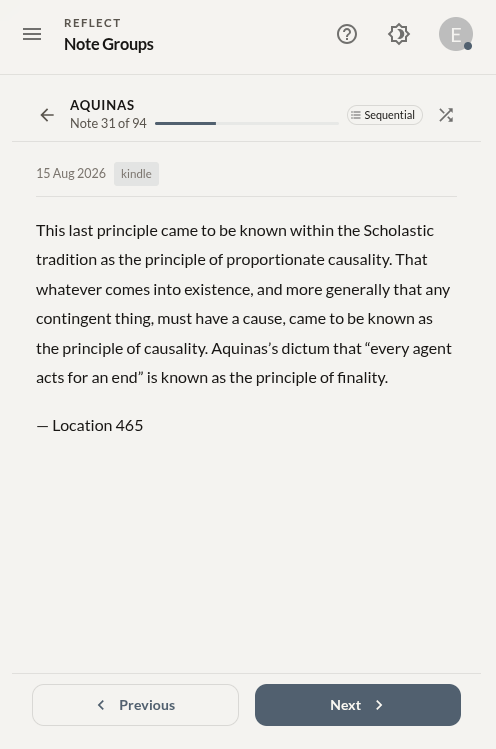
Open a note group and press Review to step through its notes one at a time — sequentially or shuffled. Studium remembers where you left off, so a review session can span several sittings. Use the arrow keys to move between notes.
Work faster without the mouse.
- Shift + N — Create a new note from anywhere in the notes view
- E — Edit the currently open note
- Cmd/Ctrl + Enter — Save the note without leaving the keyboard
-
| — Use in search to combine multiple keywords (e.g.
philosophy | stoic)
Getting the most from notes.
- Don't organize — search instead. Folders and tags create maintenance overhead. Good note titles and keyword-rich content make search more effective than any taxonomy.
- Import your Kindle highlights. The books you read deserve to exist in your personal knowledge collection — not only in Amazon's ecosystem.
- The scheduled review emails do the work of resurfacing. You don't need to manually revisit — the system brings past knowledge back when appropriate.
- Use the random note feature between review emails to discover what's been on your mind. Often the most valuable knowledge is something you captured and forgot.
Also in Studium.
Habits
A plain tap-to-complete list, with progress tracking if you go looking for it.
Learn more →Notes
Rich notes with Kindle sync, note import, and scheduled review emails for long-term knowledge retention.
Learn more →Recurring Tasks
Obligations and reminders with email notifications, due dates, and snooze.
Learn more →